Friday, January 12, 2018

SharePoint 2013 Cannot complete this action. Please try again

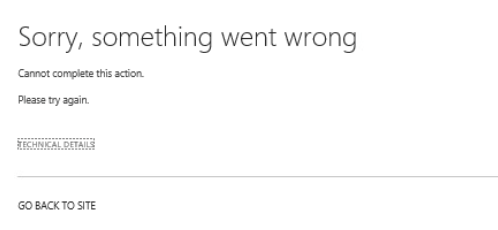
"Cannot complete this action. Please try again", one of the scary error in SharePoint.

I was doing the CU update on SharePoint with SharePoint 2013 on Premise, after successful CU update, all sites home page getting this weird "Cannot complete this action" error screen.


CU update itself took around 8-9 hours for all 11 servers. Lots of lots of debugging and reading the ULS logs didn't help me with only one option left to rollback to previous version by restoring the Database and Servers.

Here are some of the issues we faced:
  • Home page was showing above error.
  • ULS log was having error some times "cobalt.exception" error.
  • When we tried to access some of the Page Layouts files we got "The URL is invalid. It may refer to a nonexistent file or folder or refer to a valid file that is not in the current Web" error.
  • When we tried to create any new page or list we got "There are characters in the page URL name that are not valid. Type a different name" error.
We created a sandbox environment and replicated the production environment, after doing lot of comparison with other environment and analysis we found the issue was with the Database Permission changed after CU update.

The app pool account used for web application was not the DB_owner on the Content Databases after CU update. where as prior to update the same Content DB the app pool account was DB_Owner. After reading Microsoft document I found below article which was talks about "SP_DATA_Access" role.

ref: https://docs.microsoft.com/en-us/SharePoint/install/account-permissions-and-security-settings-in-sharepoint-2013#sp_data_access-database-role

Make sure you try the following:

  1. Verify "SP_Data_Access" has right kind of permission as mentioned in above link
    In SharePoint 2013....

    The Add-SPShellAdmin cmdlet does not grant the user membership  to the db_owner role, but instead places the user in a SPDataAccess role

    The SP_DATA_ACCESS role replaces the db_owner role in SharePoint 2013
  2. if above doesn't work then give DB_Owner role for app pool account on individual database.
  3. if step 2 works then "SP_Data_Access" role doesn't have proper permission.
  4. if step 2 fails then give app pool account sysadmin role. (This will resolve the above error definitely).
Updated on 09/20/2018: 
     Hi Guys, we found out the actual reason for above error in error log. i am sorry its very late to update this.
     We are using Metalogix RBS. There was access denied on one of the Metalogix Stored Procedure. unfortunately it wasn't logged as "Unexpected" or "Error" that the reason we could not found this in Log since we were searching for Error.

Root Cause:

  • Whenever we enabled Metalogix Job for Externalization on any Database Metalogix was adding some extra rbs roles and DB_Owner Permission.
  • After our CU Installation, DB_Owner permission was removed by Microsoft since SPDATAAccess was already present on all databases.
  • Unfortunately, our App Pool was not able to access the Metalogix functions and stored Procedure hence we received the error.
  • after adding the DB_Owner permission to the database where RBS is enabled by Metalogix after that the error is gone.

Moral of the Story:

  • If you get this king of error make sure app pool has proper permission on DBs or SharePoint Objects. 


Hope this helps!


Friday, November 24, 2017

Using C#.Net DocuSign REST API to generate Recipient Signing URL

In my previous example i elaborated how to retrieve AccountID for all Login in DocuSign. Taking to the next level i had another requirement, In my Web App client wanted me to show the clickable link for my Envelopes which will take them to documents to Sign.

I thought this might be a straight forward solution to generate the Link. Unfortunately you can not create static formatted link. There is no property which can be used for this purpose.

By default, DocuSign transactions and workflows are initiated through email. The recipients - known as a remote recipients in this case - use system-generated email links to complete their documents through the simple and intuitive DocuSign Website. So when we required our web app/console app to generate these links using embedded recipients. You can let users sign or send documents directly through our UI, avoiding the context-switch to email.

To generate the recipient signing URL call the EnvelopeViews: createRecipient method, using the same identifying recipient information - including the clientUserId - that was sent with envelope


// we set the api client in global config when we configured the client
ApiClient client = new ApiClient(basePath: "https://demo.docusign.net/restapi");
Configuration cfg = new Configuration(client);
//ApiClient apiClient = Configuration.Default.ApiClient;
string authHeader = "{\"Username\":\"" + usr + "\", \"Password\":\"" + pwd + "\", \"IntegratorKey\":\"" + integratorKey + "\"}";
            //Configuration.Default.AddDefaultHeader("X-DocuSign-Authentication", authHeader);
cfg.AddDefaultHeader("X-DocuSign-Authentication", authHeader);


RecipientViewRequest viewOptions = new RecipientViewRequest()
            {
                ReturnUrl = "https://www.docusign.com/",
                ClientUserId = clientUserId, //"1001",  // must match clientUserId of the embedded recipient
                AuthenticationMethod = "email",
                UserName = userId , //"{USER_NAME}",
                Email = email//"{USER_EMAIL}"
            };


// instantiate an envelopesApi object
EnvelopesApi envelopesApi = new EnvelopesApi();
envelopesApi.Configuration = cfg;
// create the recipient view (aka signing URL)
ViewUrl recipientView = envelopesApi.CreateRecipientView(accountId, envelopeId, viewOptions);

            // print the JSON response
            //Console.WriteLine("ViewUrl:\n{0}", JsonConvert.SerializeObject(recipientView));
            //Trace.WriteLine("ViewUrl:\n{0}", JsonConvert.SerializeObject(recipientView));

            // Start the embedded signing session
            return recipientView.Url;

Thursday, November 09, 2017

Using C#.Net DocuSign REST API get Account ID in Web App

I was working on integrating DocuSign data into my Web App. The requirement was pretty simple, for a given account just display the documents which are awaiting for signature by others. First step was to get the account id(s) of the Admin account of DocuSign.

I was searching a solution on net and found it very difficult to gather the information and working code.

Here is the code which works well and tested in console application. I am sure you can use this code display in the data in web App also. you can add DocuSign package using NuGet in your solution.


Note: You just need to add DocuSign.eSign dll with strong key if using this code in Web App or SharePoint.

Use Integrator Key and BasePath if you are using Demo account. in my case i used Demo account. For Production purpose you need not have to mentioned this basePath.


        static void Main(string[] args)
        {
            loginApi(userName, password);
        }

        static public string loginApi(string usr, string pwd)
        {
            // we set the api client in global config when we configured the client
            ApiClient client = new ApiClient(basePath: "https://demo.docusign.net/restapi");
            Configuration cfg = new Configuration(client);
            //ApiClient apiClient = Configuration.Default.ApiClient;
            string authHeader = "{\"Username\":\"" + usr + "\", \"Password\":\"" + pwd + "\", \"IntegratorKey\":\"" + integratorKey + "\"}";
            //Configuration.Default.AddDefaultHeader("X-DocuSign-Authentication", authHeader);
            cfg.AddDefaultHeader("X-DocuSign-Authentication", authHeader);

// we will retrieve this from the login() results
            string accountId = null;

            // the authentication api uses the apiClient (and X-DocuSign-Authentication header) that are set in Configuration object
            //AuthenticationApi authApi = new AuthenticationApi();
            AuthenticationApi authApi = new AuthenticationApi(cfg);
            LoginInformation loginInfo = authApi.Login();

            // find the default account for this user
            foreach (LoginAccount loginAcct in loginInfo.LoginAccounts)
            {
                if (loginAcct.IsDefault == "true")
                {
                    accountId = loginAcct.AccountId;
                    break;
                }
            }
            if (accountId == null)
            { // if no default found set to first account
                accountId = loginInfo.LoginAccounts[0].AccountId;
            }

            return accountId;
        }


Thursday, October 26, 2017

Get Logged in user details in SharePoint 2013 using REST

I have seen lot of SharePoint Developer need to know the details of Logged in User on Client Side. if you are developing custom webpart its very easy where you have to code to get the details and store in the JavaScript variables.

The things gets little tricky when you want these details in the client side only. like content Editor webpart where you are not going with the Custom solutions.

There are 2 ways, either you can use JSOM or REST service.

In my first example i already shown how to use JSOM. here is another way to use REST to get the details of logged in SharePoint 2013 User.


  • Create a getUser.Js file
  • add following on load jscript code to give a call to getUserName function
$(document).ready(function () {

// Load SP.js file before calling JSOM code
// On Publishing pages SP.js loads automatically
SP.SOD.executeFunc('sp.js', 'SP.ClientContext', getUserName);

});
    • Add below code which will call REST code 
      function getUserName()
      {
      var userid= _spPageContextInfo.userId;
      var requestUri = _spPageContextInfo.webAbsoluteUrl + "/_api/web/getuserbyid(" + userid + ")";
      var requestHeaders = { "accept" : "application/json;odata=verbose" };
      $.ajax({
      url : requestUri,
      contentType : "application/json;odata=verbose",
      headers : requestHeaders,
      success : onSuccess,
      error : onError
      });
      }

      function onSuccess(data, request){
          userdisplayname = data.d.Title; // You can use console.log(data) to get other properties
      }

      function onError(error) {
          alert("User name not found, you may experience some data issues in some applications");
      }

    • Uppload getUser.js file to style library (or any other library you want).
    • Add getUser.js file on page using Content Editor WebPart
    • Make sure your Content Editor HTML is as below
    Note:


    • SP.js is only loaded on Demands in some pages.

    Saturday, October 21, 2017

    Get Logged in user details in SharePoint 2013 using JSOM

    I have seen lot of SharePoint Developer need to know the details of Logged in User on Client Side. if you are developing custom webpart its very easy where you have to code to get the details and store in the JavaScript variables.

    The things gets little tricky when you want these details in the client side only. like content Editor webpart where you are not going with the Custom solutions.

    There are 2 ways, either you can use JSOM or REST service.

    my first example will make use of JSOM to get the details of logged in SharePoint 2013 User.


    • Create a getUser.Js file
    • add following on load jscript code to give a call to GetCurrentUserName function
    $(document).ready(function () {

    // Load SP.js file before calling JSOM code
    // On Publishing pages SP.js loads automatically
    SP.SOD.executeFunc('sp.js', 'SP.ClientContext', GetCurrentUsername);

    });
      • Add below code which will call JSOM code 
      function GetCurrentUsername() {
      var ctxt = new SP.ClientContext.get_current();
      this.website = ctxt.get_web();
      this.currentUser = website.get_currentUser();
      ctxt.load(currentUser);
      ctxt.executeQueryAsync(Function.createDelegate(this, this.onSucceess), Function.createDelegate(this, this.onFail));
      }

      function onSucceess(sender, args) {
      var userdisplayname = currentUser.get_loginName().split('\\').pop();
      //This displace the user name after removing the Domain Part e.g. i:0#.w|Domain\sandeep gives sandeep;
      }

      function onFail(sender, args) {
      alert('request failed ' + args.get_message() + '\n' + args.get_stackTrace());
      }
      • You can get other properties of user by calling the other functions


      • Uppload getUser.js file to style library (or any other library you want).
      • Add getUser.js file on page using Content Editor WebPart
      • Make sure your Content Editor HTML is as below

      Note:
      • SP.js is only loaded on Demands in some pages.

      Thursday, May 25, 2017

      Request Usage on SharePoint 2013 (Custom Reports)

      I already explained in my previous article difference between user activity(user actions) and audit log. SharePoint logs all user actions such as site visits, list/libraries visits, page visits and so on. This information stored in SharePoint logging database. SharePoint has some out of box reports to view these data. Sometimes we need custom reports based on the request usage logged by SharePoint. These reports can be designed directly against SharePoint Logging Database either by creating new tables/views or OOTB views.

      Let’s understand how we can achieve custom reports using SharePoint Logging Database.

      Location:

      You can do monitoring efficiently by using the logging database in SharePoint 2013. The logging database collects information from every server in the farm. The default name of the database is SharePoint_Logging. The logging database provides the option to view and customize various monitoring information in one place.

      How:

      The logging database uses a separate partition table for the daily data for each category. E.g. SharePoint writes the 1st day of data in dbo.TimerJobUsage_Partition0 table and for 32nd day in dbo.TimerJobUsageUsage_Partition32 table. This means, each partition table stores one particular day’s logs.

      The mapping between one partition table and the exact date depends on the logging database retention period and the starting date to write logs into the logging database. You can get the mapping by observing time information inside each table. For example, if the retention period is 5 days and today’s logs are written to partition table 1, tomorrow’s logs will be written into partition table 2 and so on. After 5 days, all logs were gets deleted and new logs are written to the partition tables from first.

      Access:

      SharePoint Logging database has default views which can be used to access these data which is scattered between these partition tables. One of the default view is RequestUsage. This view provide the combined user activity data from all partition tables.

      Actual Implementation: 

           SharePoint Logging database has retention period of 3 days by default. This can be changed using power-shell command. changing these retention period may add more load on database since SharePoint Logs millions of rows per days. I am sure changing this to more than 30 days may add lot of rows and increase the size of logging database too.

             I would recommend the intermediate table which can be used to store this data for more than specified limit days. Follow below steps. (Logging database is the only SharePoint 2013 database for which you can customize reports by directly changing the database).


      1. Create new table in SharePoint Logging Database. 
      2. Create new custom view which can filter these data by previous day using the above view “RequestUsage”. Be sure to filter the records since “RequestUsage” will give you millions of rows since SharePoint logs each and every minute activity of user. E.g. if you visit one page in SharePoint then it logs each and every entity used on that page as separate rows.
      3. Create the SSIS package or executable which will Import the custom view output into the new custom table.
      4. Schedule the SSIS Package or executable daily.
      5. Create reports based on the new custom table.

      Wednesday, May 03, 2017

      User Activity Report Vs Audit Log in SharePoint 2013

      It’s very important that your intended users should be benefiting value out of SharePoint for not only storing but their usage too. Management decisions are based on metrics-driven and hence SharePoint does various analysis appropriate for SharePoint Administrator to measure, monitor and produce activity and audit reports.

      User activity is defined as some action taken by User on web, site, or documents (SharePoint Items). SharePoint comes with lot of out-of-box Usage and Audit reports which worth considering. Lets first understand difference between Usage and Audit.

      Usage Reports:


      When term Usage comes it refers to the Usage of particular web application, site, or Document. Analytics Processing Component in SharePoint Server 2013 analyzes both the content itself, and also the way that users interact with it. The results from the analysis are added to the items in the search index so that search relevance improves automatically over time. Also, the results are used in reports that help search administrators see which manual steps they can take to improve the search system.

      Report
      Displays
      Usage Summary
      Average Requests per day, Top Pages, Top Users, Top Referring Hosts, Top Referring Pages, Top Destination Sites, Top Queries, Search Results Top Destination Pages
      Requests
      Requests per day, Average Requests by month
      Users
      Unique Users, User Activity (past 30 days)
      Referrers
      Top Referring Hosts, Top Referring Pages
      Destination
      Top Destination Sites
      Home Page
      Home Page Requests per Day, Top Referring Pages, Top Destination Pages
      Search Queries
      (site collection only)
      Top Queries (Previous 30 days, Previous 12 Months), Queries per Scope
      Search Results
      (site collection only)
      Top Destination Pages, Queries with Low Click Through, Queries with Zero Results, Queries with Zero Best Bets

      This data is not stored forever in the SharePoint Database. Usage analytics is a set of analyses that receive information about user actions, or usage events, such as clicks or viewed items, on the SharePoint site. The usage events are stored temporarily on the web front end and are pushed to the Search Service Application every 15 minutes. Usage events are kept on disk for up to 14 days before they are deleted. This number of days you can control in Central Administration or using Powershell commands. Usage analytics combines this information with information about crawled content from the Search analyses, and processes the information. Information about recommendations and usage events is added to the search index. Statistics on the different usage events is added to the search index and sent to the Analytics reporting database.

      Based on these statics the different reports are generated by SharePoint Out-of-box.
      To access these reports, Visit your Web Application > Site Settings > Popularity and Search Reports. Of course you can customize these reports using Powershell.

      Audit Log Reports:


      SharePoint Audit logs allows you to capture whole range of audits on your SharePoint Farm based on your needs. SharePoint allows you to control which web application, Site collection, or even libraries to be monitored.

      It might seem like overkill, but being able to track how individual end users make use of your SharePoint environment is very helpful. Audit logs is to set them to delete logs within a reasonable amount of time. This can be managed from Central Administration and it is default to 30 days. Fortunately, you can set SharePoint to delete these outdated logs when you need to. Audit logs can quickly duplicate, and expand so fast they fill up your SQL Server so beware to enable them on your Site. The audit logs stored in the Content Database only hence you need to be extra cautious when enabling the Audit Log.

      Note: Each time you set up a new site, you’ll also need to configure the audit log for it – this won’t be applied automatically. SharePoint audit logs also let you set up audit flags that allow you to track specific changes.
      ·       Check in/check out
      ·       View
      ·       Delete/undo
      ·       Update
      ·       Schema and profile changes
      ·       Security change
      ·       Copy/move
      ·       Search
      ·       Workflow child delete
      ·       Other flags for a whole range of other events

      To access these reports, Visit your Web Application > Site Settings > Audit Log Reports. 
      To set Audit Log settings, Visit your Web Application > Site Settings > Site Collection Audit Log Settings.

      In my opinion, when you just need to monitor the usage of the Site Usage reports are the best. Whereas if you want to do the details analysis of how your site being used by users in terms of uploading, viewing, deleting documents I would recommend to activate Audit log for your site.

      I came across with one requirement where my client want to know all users who has visited their intranet SharePoint web application, site collections and web sites. They want to track this for at-least 2-3 years before they discard this analytics. The catch is SharePoint stores statics but do not store the actual user wise data for more than 30 days. My next article will explain on how to achieve this.


      Wednesday, March 08, 2017

      List Views disappear from view selector menu whenever views created programatically

      I was developing an automated code which will create views dynamically on SharePoint List. The code was working perfectly for other types of views except for Data Sheet view. The fact that other people are experiencing this makes me suspect of an issue in the API but perhaps there is something we can do to overcome this.

      I was surprised when i was adding the view manually through UI was working fine.

      This weird issue happens when you are trying to create views programatically. This issue comes in both SSOM or CSOM and it also happens in various types of views, such as Datasheet and Calendar and may be with others. 

      The workaround is to trigger an update on the DisableViewSelectorMenu webpart property, which can be achieved by manually editing the view webpart through the user interface, or programatically updating the property and the webpart, as shown below:

      From SharePoint UI:


      Programtically:


      private static void FixWebPartViewSelector(SPWeb web, SPList list, SPView view) { var pageUrl = web.Url + "/" + view.Url; SPLimitedWebPartManager webpartmanager = web.GetLimitedWebPartManager(pageUrl, System.Web.UI.WebControls.WebParts.PersonalizationScope.Shared); XsltListViewWebPart wp = webpartmanager.WebParts[0] as XsltListViewWebPart; wp.DisableViewSelectorMenu = true; webpartmanager.SaveChanges(wp); wp.DisableViewSelectorMenu = false; webpartmanager.SaveChanges(wp); }